



Now that Intune adoption is in full swing, how can organizations leverage policies from GP Preferences in Intune when managing a hybrid environment? SDM Software lets you do this using its new free tool, GPP-to-Intune Bridge.
Download GPP-to-Intune Bridge Free Tool
What Is GPP-to-Intune Bridge
The lack of GP Preferences (GPP) in Intune has forced administrators to fall back on script-based approaches to fill the gaps. There have been nice community tools released that attempt to convert some parts of GPP to PowerShell scripts so they can be used in the Intune platform or in remediation scripts, but up until now, there hasn’t been a complete 1-1 replacement story for GPP within Intune.
SDM Software has been using our in-depth knowledge of Group Policy and experience migrating GP settings to Intune to develop a free tool, GPP-to-Intune Bridge.
This tool is a command-line utility that allows you to take existing GP Preferences settings you’ve defined in your GPOs and migrate them to PowerShell scripts that can be executed on Intune-joined devices via platform or remediation scripts in Intune.
Do you want to migrate GPOs to Intune in a couple of clicks?
How GPP-to-Intune Bridge by SDM Software Differs from Other Community Tools
The main difference between what we’re doing here and what some other community tools do is that we are taking advantage of a little-known feature on Windows systems that has been available since the beginning of GPP. Namely, that the local GPO on every system can and will process GPP settings if they are created in the correct format.
That means that we can migrate any and all GPP settings you have within your GPOs, including those that leverage Item-level targeting, and then create a PowerShell script that re-creates those settings within the per-computer or per-user local GPO on any Windows device.
So, the input of our GPP-to-Intune Bridge tool is an existing GPO, and the output is a PowerShell script that—when executed on a Windows device—recreates those GPP settings within the local GPO.
GPP-to-Intune Bridge Advantages
Deploying GP Preferences to Intune with GPP-to-Intune Bridge gives you several immediate advantages:
- You can migrate all the different GPP types without exception
- You can leverage Item-level targeting, where applicable (i.e., some ILTs are AD domain-specific and not relevant to Intune-only devices)
- You can generate a Resultant Set of Policy (RSoP) on these devices to see what GPP is in place, just as you would with domain-joined systems
Seeking a centralized configuration governance across Group Policy and Intune?
Check Change Manager for Group Policy/Intune
How GPP-to-Intune Bridge Works
Download the zip file from here, and extract it to a folder. The tool requires .Net Core 8.0 but also includes the framework within the package that you download, so if you don’t have it installed, it will be executed when you call the application. The tool itself is a console (command line) application called GPPtoIntune.exe and has extensive help if you just run the command without parameters:
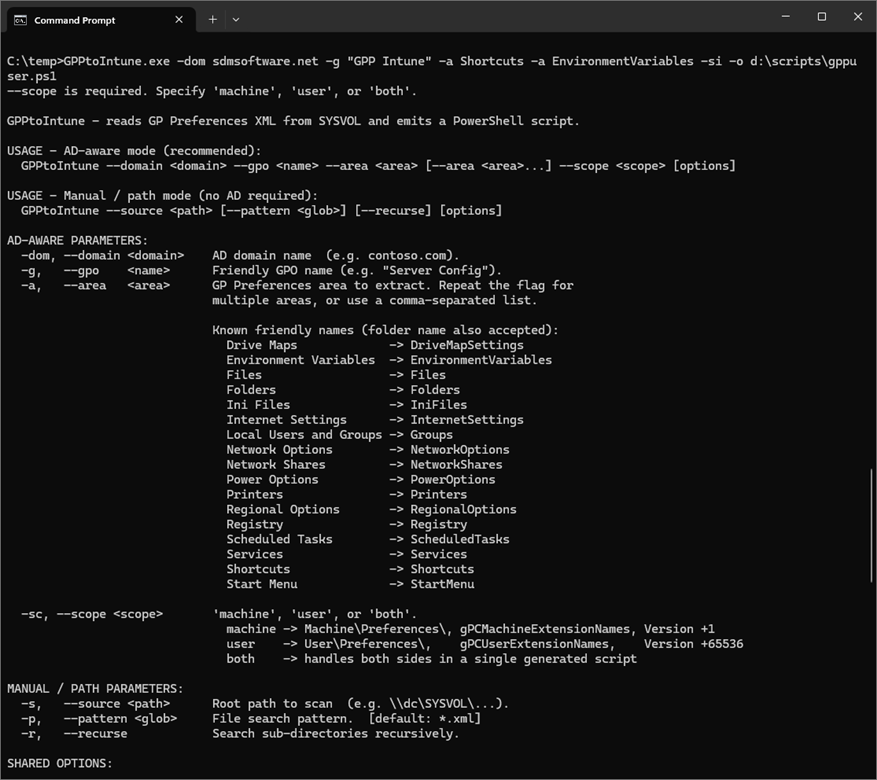
Here’s an example command that takes existing per-user GPP settings from Environment Variables and Shortcuts, and exports those to a script call gppuser.ps1:
GPPtoIntune.exe -dom sdmsoftware.net -g “GPPIntune” -a Shortcuts -a EnvironmentVariables -sc user -si -o d:\scripts\gppuser.ps1
In this command, we’re reading the GPO called “GPPIntune” in the sdmsoftware.net domain, telling it we want to bring along Shortcuts and EnvironmentVariables, that the scope is per user, and that we want to have the script execute with no console output (i.e. -si parameter). This will all be output to d:\scripts\gppuser.ps1, which can be taken and imported into an Intune script policy to execute on your Intune-managed devices.
There are a lot of parameters that the tool supports. For example, if you want to remove GPP settings previously added to a group of machines or users, there’s a –reset parameter that creates a PowerShell script to remove the settings you need. There’s also an option to read directly from GPP XML files, so if all you have is a collection of GPP XMLs living outside of a GPO, you can use this option to ingest them.
In terms of using these with Intune, the scripts that get generated are unsigned, of course, but you can sign them as per your own organization’s needs. In addition, we know that Intune script deployment can be somewhat finicky. The scripts generated do emit Exit codes (Exit 0 or Exit 1) at the end of their steps.
Let us know your feedback on these and what other scenarios you’d like us to support, if any!