


I still stumble across questions about Group Policy Loopback Processing on Reddit and other platforms. It confounds a lot of folks because what it does is a bit complex. In this blog, I am going to try to break it down so it is easy to digest.
What is Loopback Processing
Let’s start at the beginning. Group Policy gives admins the ability to manage and deploy thousands of configuration settings within the Windows operating system. The Group Policy Editor separates computer-based settings from user-based settings. While many settings exist on both sides, others are unique to either the computer or the user.
That’s not a big deal, unless we start talking about shared user devices. In these scenarios, there are often user-side policy settings you want to apply to the device, regardless of who logs on. By default, however, Group Policy applies user settings based on the user’s Active Directory account location rather than the computer they are using.
That’s too bad because many enterprises have kiosk machines or other devices that you want to manage as user non-centric devices, so that no matter who logs on, they get the same delivered user settings. So, on the surface, it seems that Group Policy restricts you to computer-side policy settings only, which means you are missing out on all those wonderful, unobtainable settings on the user side.
This is where Loopback Processing comes in. Loopback processing allows Group Policy to apply different user settings based on the computer’s location, effectively treating the computer as if it were the user for policy processing purposes. As a result, administrators can leverage user-side policies to deliver a consistent, controlled experience on shared or kiosk machines regardless of who logs on.
A Real World Example of Loopback Processing
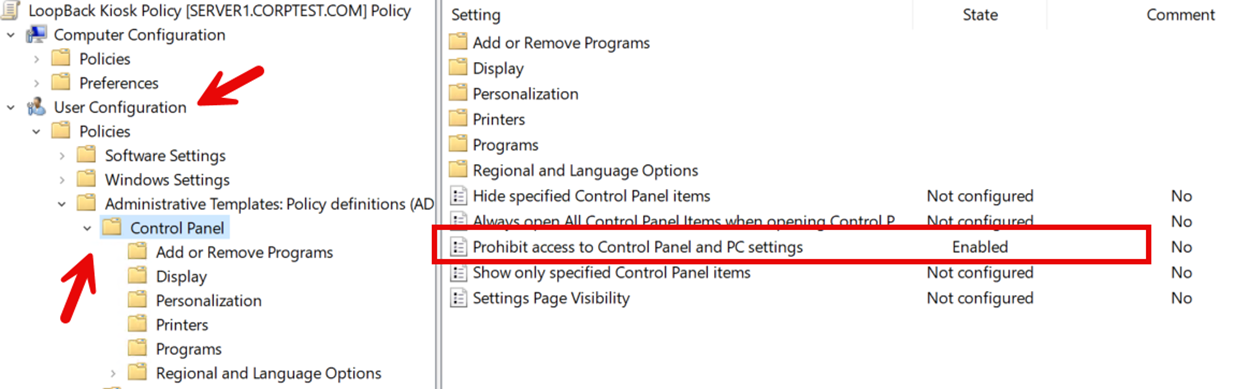
Let’s say I want to make a GPO for my kiosk machines that reside within the Kiosk OU of our domain. Some of the things I want that policy to do are lock down the Settings dialog and disable OneDrive. Both of those settings are on the User Side of Group Policy, as shown below:
I will go and enable all the User Side settings I need to be processed by Loopback Processing by navigating to Computer Configuration\Administrative Templates\System\Group Policy
and enabling “User Group Policy loopback processing mode” as shown in the exhibit below:

Once enabled, you have two mode options—merge or replace.
- Merge mode combines user policies from two places. The GPO first applies the user’s normal user policies (as if they were logging into their normal workstation), then applies the loopback user settings. If there’s a conflict, the computer-side user settings win.
- Replace says, “Just apply the loopback user settings” from the computer.
I generally tell people to choose “replace” mode unless they have a specific requirement for merging because the complexities of merging make troubleshooting effective settings very complicated.
If you’d like to discuss your current configuration state and find a way to optimize its management, feel free to request a meeting
Drawbacks of using Loopback Processing
Keep in mind that there are some drawbacks to using Loopback.
- Troubleshooting becomes more complex as Loopback introduces another “algorithm” for policy processing
- Unexpected results can happen in Merge Mode as computer policies override user policies
- Critical policies such as security settings and login scripts can be ignored using Replace Mode
- More policies to process can result in longer login times, especially if you introduce policies on both sides (user and computer) that both process in loopback mode.
Another challenge is that because Loopback Processing is less understood, it can be misused or applied unnecessarily. I’ve seen situations where loopback was inadvertently enabled on every machine in the organization—not a pretty sight! Loopback is a powerful tool that should be used only in very specific circumstances and should not be applied broadly.
Talk to the Configuration Expert
"*" indicates required fields