


On Twitter/X I saw a thread about managing Windows Services using Group Policy. The poster talked about using the setting area under Computer Configuration\Policies\Windows Settings\Security Settings\System Services to control Windows Service startup settings (e.g., Automatic, Disabled, Manual, etc.), as shown here:
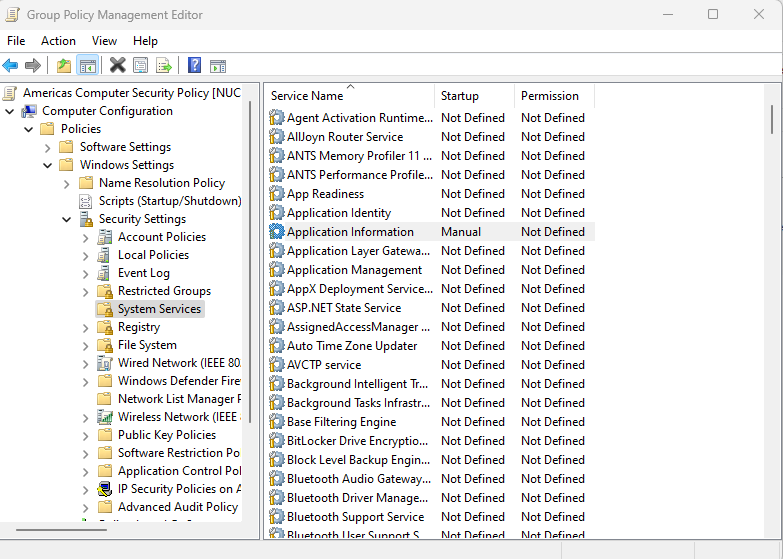
As with many things in Group Policy, there are multiple ways to solve a problem — some better than others. Services is another example of that. When Microsoft introduced GP Preferences, they provided Windows Service control under Computer Configuration\Preferences\Control Panel Settings\Services, with capabilities different from those in the legacy System Services area. Confused?
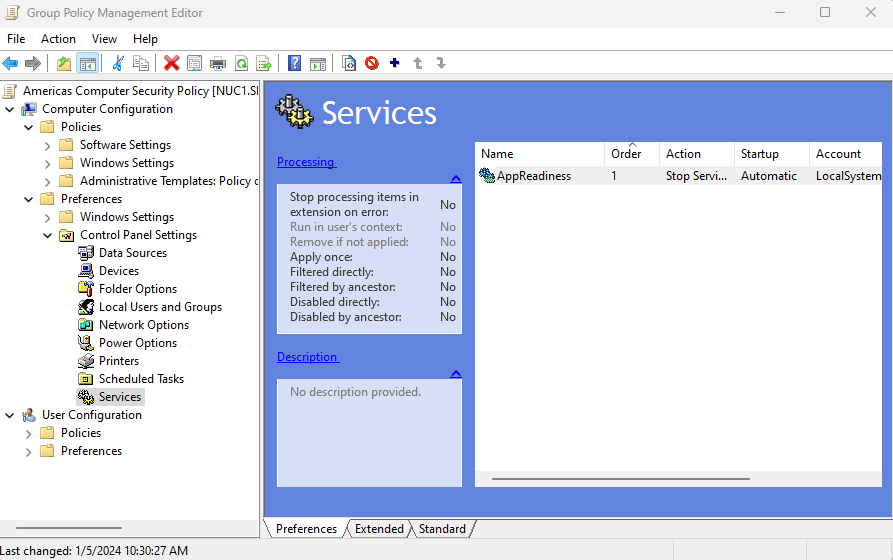
Depending on your goals, using one or the other area within GP may be more appropriate. The TL;DR is that GP Preferences is more likely to be your friend when it comes to service management.
Managing Services with Policies
Each of the policy areas above has capabilities and limitations. These are useful to understand before deciding which to use. The Security Settings\System Services area lets you set the startup type for a service, but when you do, you’re also required to set the service’s permissions. Note: It’s not possible to just set the startup type here. That’s a big limitation that you may want to avoid (I usually do). That being said, this is one of the few management planes for actually controlling service permissions, short or direct editing of the registry, so it’s not absolutely useless! What happens with this policy area is that when you set the startup type, it also stamps default permissions on the service, as shown below:
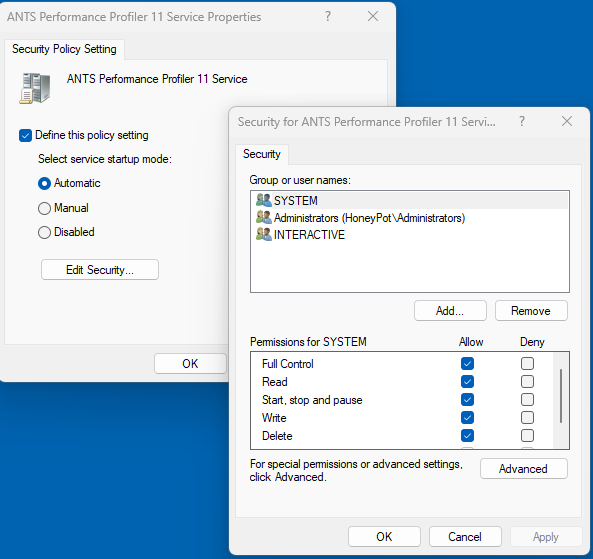
If you just leave this default set of permissions, they will be applied to the service along with the startup type you selected when the policy is processed on computers. Depending upon your goals, that may not be a good thing. And there’s no easy way around it. At least not one I would recommend.
The other limitation in this particular policy area is that the list of services you’re presented with to manage is fixed and is based on the machine you’re currently running the GP Editor on. Let’s say you’re trying to manage the startup type of a service that runs on a set of servers, but you’re editing the GPO on a workstation that doesn’t have that service installed. In that case, that server-based service won’t be available in the list of services that you can manage. So, in general, you’re out of luck unless you want to be mucking wtih the underlying settings storage file directly, which most people don’t.
Managing Services with GP Preferences
I find myself using the GP Preferences (GPP) way of managing services (and many other things) more often than not, given its flexibility. Specifically, the GPP Services area provides you with the functionality you wanted in a regular policy, without most of the downsides. And as a bonus, it has a fair bit of extra functionality (e.g., item-level targeting inherent in GPP). Namely, you can:
- Control Service Startup Type
- Stop, start, or restart a service when the policy applies (not exactly something you’d want to do in policy, but it can potentially come in handy)
- Set the service account information (i.e., the logon) on the service (but not the password)
- Set the wait timeout on a service operation
- Set the recovery options for a service (stuff like how many times to try to automatically restart the service if it stops, and how long to wait)
- Control an arbitrary service, as long as you have the service name (more flexible than system services here for sure!)
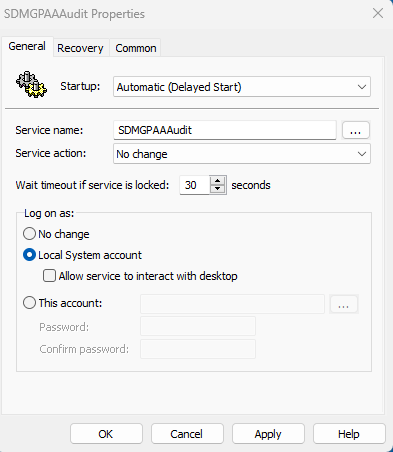
So GPP Services can do almost everything you might want to do to a service except set the permissions on the service−ironic, isn’t it? For that, you still need to use the policy-based approach described above. That said, I would argue that in 30+ years of managing Windows systems, I may have needed to modify the permissions on a Windows service less than 5 times.
Another notable exception to GPP Services (and policy-based System Services as well) is that you can no longer control the service account password. You can certainly specify a service account, but since Microsoft closed a vulnerability in how service account passwords were encrypted and stored in SYSVOL, the option to also enter the service account password is no longer available. You’ll have to set service account passwords a different way, sadly. Or, use this feature for those accounts that don’t require a password, such as LocalSystem.
Also, if you want to use the GPP Services area for services that aren’t defined on the machine where you’re editing the policy, you need to know the internal name (not the service-friendly name) of the service you want to manage, and enter it in the Service name dialog. In my screen above, the internal service name is SDMGPAAAudit. You can get a service’s internal name simply by using the PowerShell-based Get-Service cmdlet, which provides the name (internal name) and DisplayName (friendly name) of all services on a given system.
Which Approach to Manage Windows Services is Best?
While there’s no single “best” way to manage Windows services, Group Policy Preferences usually has the advantage for most environments. Unless you require highly dynamic, tightly controlled service permissions, GPP provides greater flexibility and ease of use. Its ability to define any service and leverage item-level targeting also makes it a preferred option for organizations with diverse infrastructure and nuanced configuration needs.