


For more than two decades, administrators have relied on Group Policy to centrally manage and configure settings across users and computers within their domains. However, this powerful tool wouldn’t be of much use without the ADMX file, which defines and structures all those Group Policy settings. It is the collection of these files that provides the checkboxes and dropdowns used to configure many policies within a GPO.
What Are ADMX Files?
ADMX files have been the standard administrative template format since the Windows Vista / Windows Server 2008 era, replacing the ADM format used before that. ADMX files are XML text files that describe what you see under:
- Computer Configuration\Policies\Administrative Templates and User Configuration\Policies\Administrative Templates
GP Editor literally uses them to populate the hierarchical folder structure of settings you see when you edit a GPO and drill in under “Administrative Templates.” It is important to note that no other policy areas, including Security Settings or Folder Redirection, rely on ADMX files to populate the options displayed in the Group Policy Editor.
ADMX files are provided by Microsoft (and some 3rd-party vendors) across all Windows versions at the path C:\Windows\PolicyDefinitions, as shown below.
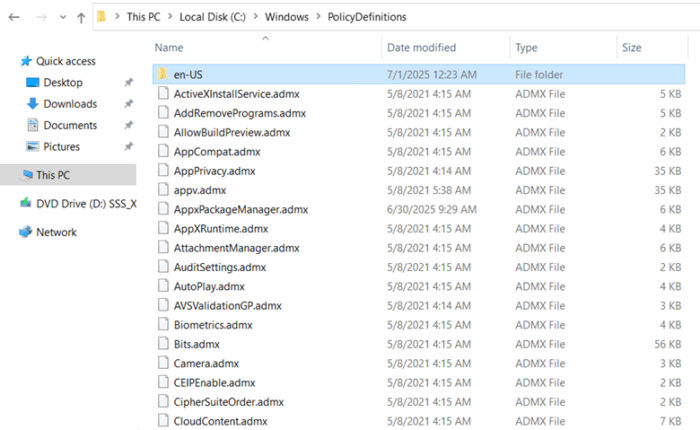
In addition to the ADMX files, you will see a language subfolder inside the PolicyDefinitions directory. In the system above, it’s named en-US, but the name varies based on your Windows display language (for example, en-US is US English). That folder stores the .adml files, which contain the language-specific strings for each .admx template. Every .admx file in C:\Windows\PolicyDefinitions requires a matching .adml file in the appropriate language folder. While you will most likely never directly use these ADML files, their absence triggers persistent error messages whenever you navigate Group Policy settings.
What to do with ADMX Files
New ADMX files are periodically introduced by Microsoft as new operating systems and features are released. This means that you need the latest ADMX files to manage any new settings. You also need to store your ADMX files in a central location so all administrators use the same files, ensuring consistency. Microsoft best practices call for all ADMX files to be stored in the Central Store. The Central Store is a PolicyDefinitions folder located in SYSVOL, which is located at \\<domain>\SYSVOL\<domain>\Policies\PolicyDefinitions.
Creating the Central Store is as easy as creating the “PolicyDefinitions” folder in the path shown above, and then copying the contents of c:\windows\policydefinitions on a current Windows machine in your environment to that new PolicyDefinitions folder. Once there, GPMC and the GP editor will automatically detect its presence and use it going forward.
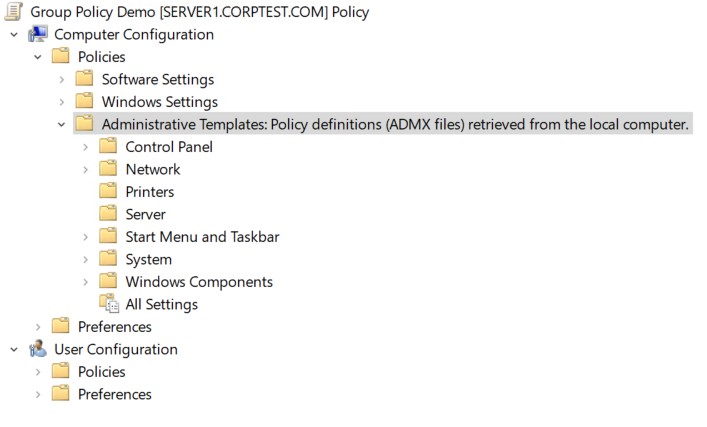
As designed, the central store is normally stored on all domain controllers within a domain. All Group Policy administrators in the domain will load Administrative Templates from the Central Store instead of their local machines. You can check whether a Central Store is in use by opening the Group Policy Management Editor and navigating to the Administrative Templates node. The text in parentheses after “Administrative Templates” indicates whether it is reading from the Central Store or from the local PolicyDefinitions folder. In the screenshot below, the files are stored in a central store located on a domain controller, which in this case is the local machine.
When Microsoft releases new ADMX files, simply retrieve them from the local PolicyDefinitions folder of the machine hosting the new or updated operating system and copy them into the central store. Another option is to download the newest ADMX files from the Microsoft Download Center. Microsoft also provides ADMX files for the Microsoft 365 suite of applications to manage them as well. Note that a variety of third-party applications are also available. Some of these include Google Chrome, Mozilla Firefox, Adobe Acrobat, and Zoom.
A quick note on legacy ADM files. These are still supported in GP Editor. If you right-click the Administrative Templates node under either Computer or User Configuration, you will see an option to “Add/Remove Templates”. This pertains strictly to ADM files and allows you to associate ADM files with GPOs that are likely also using ADMX files. That is because ADM files are stored within each Group Policy Object. When you add an ADM file to a GPO, it is copied to the ADM folder in SYSVOL for that GPO, just as it used to be in the pre-ADMX days. However, you will most likely never use ADM files unless you have some very outdated Windows operating systems in your domain.
How does Group Policy use ADMX Files?
Now that we know where ADMX files are stored, let’s discuss how they’re used. As mentioned earlier, ADMX files, like ADM files before them, play no role at all in the *processing* of Group Policy by client computers or users. They don’t even need to be present during GP processing. The only time ADMX or ADM files are ever read or needed is when you are editing or reporting on GPOs in GP Editor or in GPMC. When you expand the Administrative Templates node, the folders, subfolders, and policy items you see are generated dynamically by the Group Policy Editor and GPMC as they read each ADMX file and build the tree of nodes.
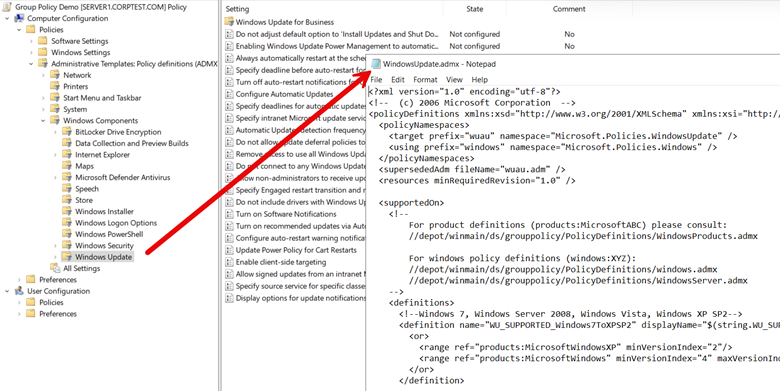
To illustrate how the ADMX files are referenced, open the Group Policy Editor and navigate to Computer Configuration\Policies\Administrative Templates\Windows Components\Windows Update. The Group Policy Editor then retrieves policy definitions from the corresponding ADMX file, which in this case is called WindowsUpdate.admx. This file contains all available settings for Windows Update configuration, as shown in the screenshot below.
Once you finish editing the GPO, the ADMX files are no longer in use. Because they are not stored in the GPO, they are not downloaded by the client that is processing that GPO, and they are never referenced during GP processing. Instead, the client relies solely on the registry keys and values defined in the registry.pol file stored in the SYSVOL portion of the GPO.
Hopefully, this has clarified the role of ADMX files in modern Windows environments, as these critical files underpin how Group Policy settings are defined and displayed. By centralizing these templates in the Central Store, administrators can create GPOs that provide consistent, up-to-date policy options across the domain.
If you want to dive deeper into Group Policy management, talk to one of our Configuration Experts.