



If you’ve worked with Group Policy for any length of time, you’ve probably heard the term ‘registry tattooing’. The concept dates back to NT 4.0 System Policies, for those Windows veterans who remember it. Tattooing occurred when a registry-based policy applied a value to a user or computer, and that value remained even after the policy file was removed. Because the policy wrote directly to the registry, the setting stayed “tattooed” in place until you explicitly reversed it.
In the same way that removing a tattoo takes a bit of pain and trouble, the only way to reverse the tattooed setting was to either create a new policy to apply the opposite value or manually delete the registry setting itself. This wasn’t very helpful when managing systems or users that changed roles.
To be fair, Microsoft acknowledged the problem and, with the introduction of Group Policy in Win2K, fixed this tattooing behavior, at least for registry values. Let’s dive into how Group Policy prevents registry tattooing today and why GPO tattooing still happens, nevertheless. If you’re wondering how Intune tattooing differs, check this blog post.
The Four “Safe Zones” in Group Policy
Obviously, the issue of rampant tattooing would diminish the value of Windows Group Policy, which is why Microsoft designates four special registry locations where values are never tattooed. You can think of these as “no‑tattooing zones.” Any registry value written under one of these keys is automatically removed when the associated Group Policy setting no longer applies. These four keys are:
- HKEY_LOCAL_MACHINE\Software\Policies
- KEY_LOCAL_MACHINE\Software\Microsoft\Windows\CurrentVersion\Policies
- HKEY_CURRENT_USER\Software\Policies
- HKEY_CURRENT_USER\Software\Microsoft\Windows\CurrentVersion\Policies
The good news is that most of the Admin Template policies that you get out-of-the-box in Windows fall under one of these 4 keys. Microsoft has ensured that any applications that are part of Windows or built by Microsoft (e.g., Office) will look into one of these four keys to determine their behavior.
Let’s say you want to hide the “Run command” from a user’s start menu. Explorer checks for a value called “NoRun” under
HKCU\Software\Microsoft\Windows\CurrentVersion\Policies\Explorer
and if it finds it, and it’s set to 1, the Run command will be hidden from the Start Menu. Because it resides in a non-tattooing safe zone, the value is automatically cleared out if the policy is removed for whatever reason.
Learn more about how to improve your current configuration state
Policy Preferences are Different
Unfortunately, not all registry values fall under these 4 keys. When a policy writes custom ADM/ADMX settings that write into arbitrary application hives (e.g., HKLM\Software\<Vendor>\<App>), things get a little untidy. Think of these settings as preferences (not to be confused with Group Policy Preferences) rather than policies. Preferences don’t benefit from the “no-tattooing zone,” and thus, if you set a preference within a Group Policy Object (GPO) and then remove that GPO, the applied settings will be tattooed. Preferences are common when you create your own custom ADMX files, since in those cases, you often must set registry values that don’t fall within these four “special” keys.
How It Works Under the Covers
You might wonder how Windows manages to “untattoo” these settings when a GPO no longer applies. Well, the mechanism is quite simple. Each time a foreground or background policy processing cycle kicks off, and an Administrative Template policy needs to be processed (meaning the GPO has changed since the last cycle), Windows begins by removing all registry values under the four “magic” policy keys that have been applied using Group Policy (side note here—if you somehow put registry values into one of these four magic keys without using Group Policy—this clean up behavior ignores them and they remain tattooed). This initial cleanup step is known as a ResetPolicies operation.
Once all registry values under these four keys have been removed, policy processing proceeds normally. If any GPOs containing policies were removed since the last processing cycle, they won’t exist anymore, since they were all removed by the ResetPolicies operation. This ensures that outdated or irrelevant Administrative Template policies don’t linger in the registry. It’s a brute‑force approach, but an effective one for keeping the system clean and preventing tattooing.
How to Avoid GPO Tattooing with Group Policy Preferences
Microsoft introduced Group Policy Preferences (GPP) with Windows Server 2008 to make it easier to deploy things like registry values, files, shortcuts, and mapped drives. While GPP does tattoo by default, it introduced a setting on the Common called “Remove this item when it is no longer applied,” as shown in the screenshot below:
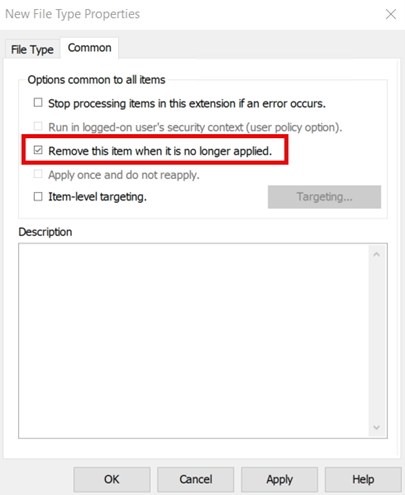
When you enable this option, Windows records that item in a local history store, and if the GPO later falls out of scope, the client automatically removes that specific preference. This could mean deleting a registry value, removing a file, or unmapping a drive. You can opt in to the removal of GPP items via that checkbox.
Learn more about how to ensure tight change control of the GPO settings
Other Kinds of Tattooing
Registry policy is not the only area of Group Policy subject to tattooing. Basically, any policy area that does not have an option to explicitly remove itself if the GPO falls out of scope of the computer or user will leave a trail behind. Some obvious ones that come to mind include registry and file system security. These settings update permissions only at the time the GPO is applied. Because there’s no straightforward way for Windows to “roll back” ACL changes, those permissions remain even after the GPO is removed. Unless the permissions are explicitly changed, the tattoo remains.
Software Installation and Folder Redirection policy can also be tricky in terms of its tattooing effect. Both have options to “un-do” things that were done, like uninstalling software when the machine or user falls out of scope or redirecting My Documents back to the local user profile in the case of Folder Redirection policy. Just know that the automated reversal for these settings can be problematic, so don’t expect guaranteed results.
Conclusion
While tattooing is not the prevalent issue it was at one time, it can still show up periodically without proper planning. By understanding where policies clean up after themselves and where they don’t, you can design GPOs and Preferences that are easier to reverse and troubleshoot.
Talk to the Configuration Expert
"*" indicates required fields