



Group Policy is a powerful administrative tool that enables centralized enforcement and standardization of settings across your environment. With so many capabilities at your disposal, it begs the question: Is it better to use functional, modular GPOs or large monolithic GPOs? Is it practical to apply all settings through the Default Domain Policy? In this blog, we will provide guidance on effective Group Policy design to ensure optimal performance and simplify Intune adoption for configuration management.
Prioritize Functional Policies over Monolithic Policies
While there is no absolute answer for all situations, best practice generally favors a modular, functional approach in which each GPO is focused on a single, well-defined purpose. Additional benefits include:
- New settings can be introduced through additional GPOs without modifying existing ones.
- Scales effectively as your OU structure and device diversity expand.
- Simplifies troubleshooting by narrowing down which GPO may be responsible for an issue.
- Improves visibility and interpretation of Resultant Set of Policy (RSoP).
- Makes audits and compliance reviews easier.
For instance, imagine maintaining a single GPO that enforces desktop wallpaper, browser settings, firewall settings, and software deployment. If that Group Policy Object breaks, has a conflict, or needs editing, you risk disrupting all those unrelated functions at once. Instead, focus on the GPO’s function where each policy has a clear, independent purpose. This makes it easier to troubleshoot, test, and update individual settings without affecting unrelated configurations.
There is, of course, a limit to this. Having 100s or 1000s of GPOs within just one or two settings is generally not the right answer either. It will affect processing performance at the endpoint. Think rather, as the name implies, about the function of the GPO. An MS Office GPO contains Office settings, a browser GPO contains browser settings, etc. Balance is the key here.
Separate Computer and User Settings
Another optimization step is to separate computer settings from user settings. The screenshot below shows an example of a single GPO trying to do too much by mixing both computer-level and user-level settings for different object types.
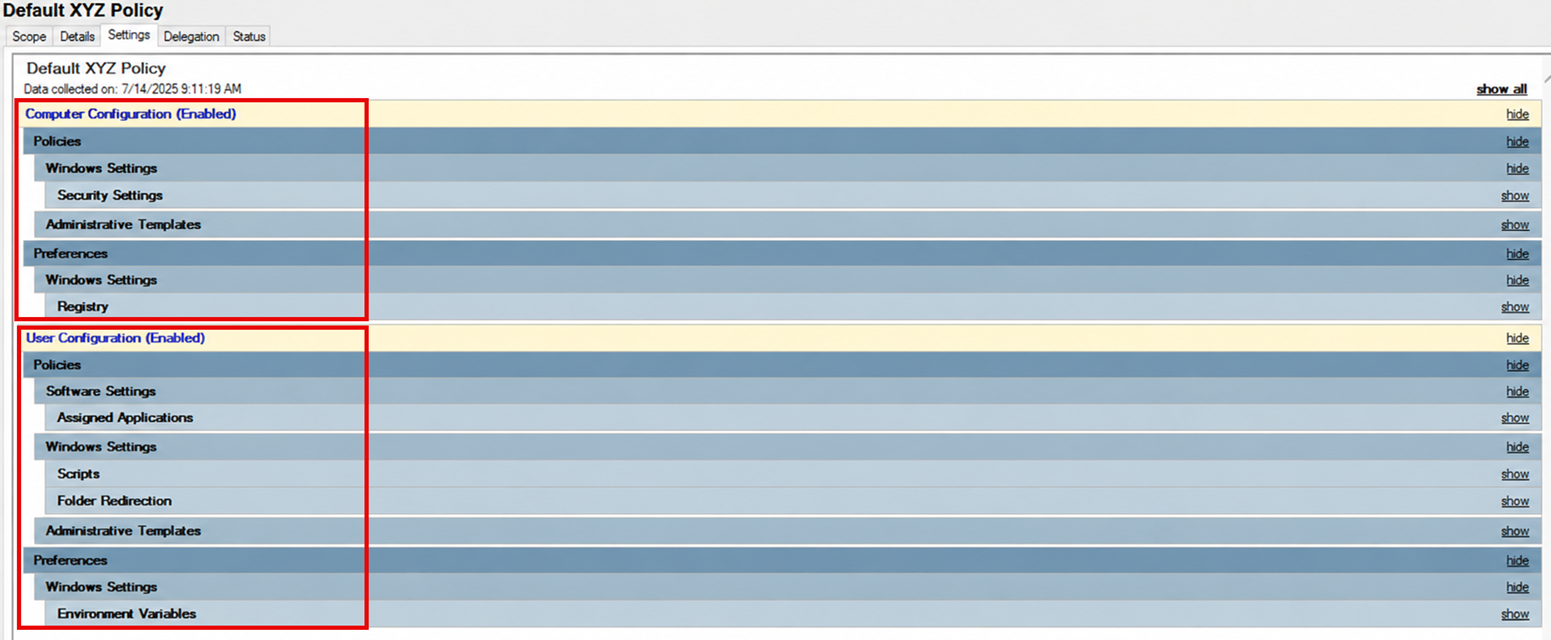
Configuring both the user and computer sides within a single GPO is typically unnecessary and can complicate troubleshooting. It also requires linking the same policy to both the user and computer OUs, while the best practice is to separate these objects. This separation improves clarity, simplifies management, and aligns with a well-structured OU design.
Ultimately, it is best to design GPOs around a single, well-defined objective rather than attempting to address multiple needs with a single policy.
Link Your GPOs to Specific Audiences
Linking GPOs to the right scope is critical for effective policy management. As a rule, avoid linking GPOs at the domain level and especially enforcing those domain-level links, which cannot be overridden by downstream links. While this may seem counterintuitive given the presence of the Default Domain Policy, best practice is to reserve that policy strictly for account-related settings such as password policy, account lockout, and Kerberos configuration. The screenshot below is an example of too many GPOs linked to the domain.
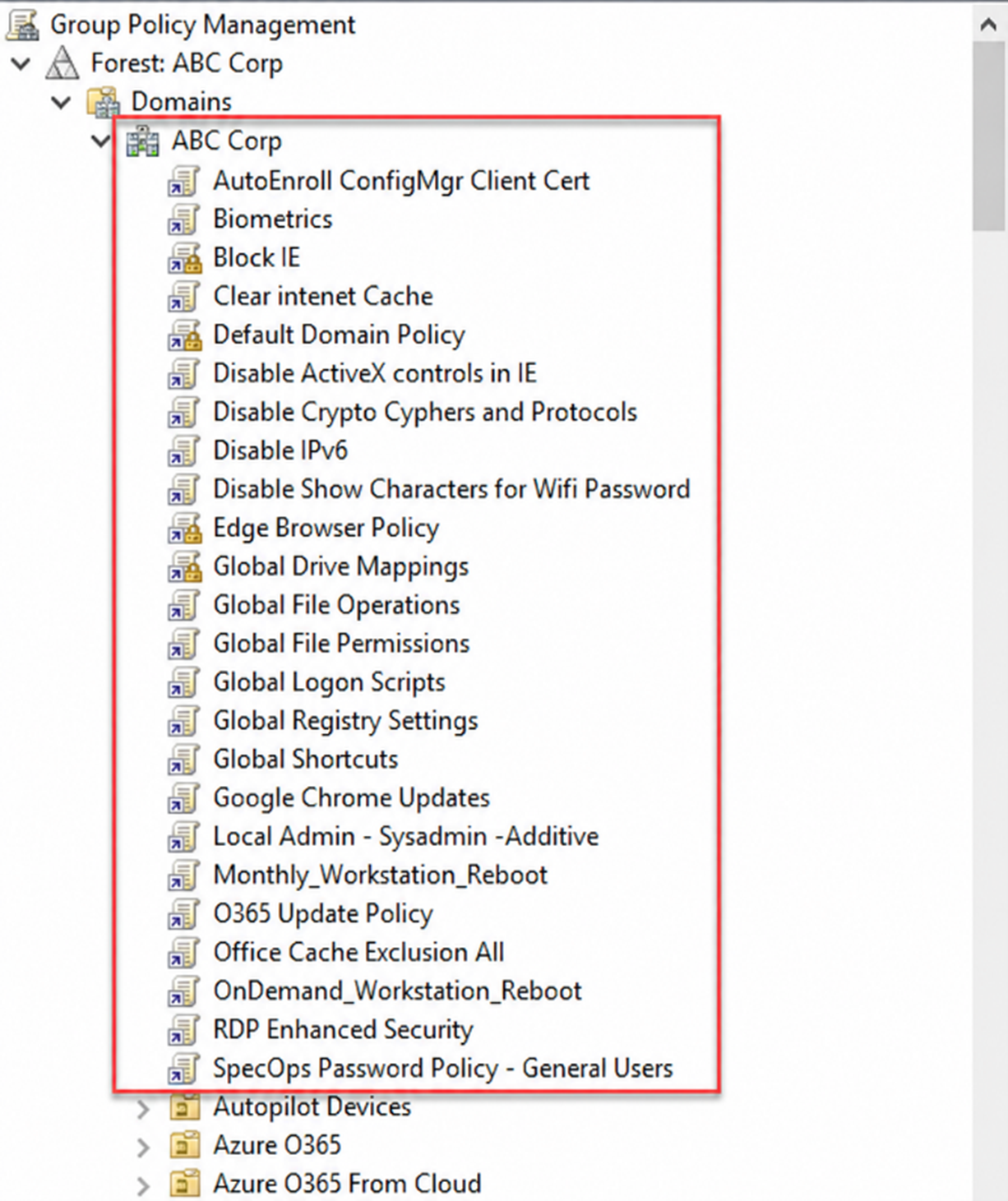
Instead, design your GPO strategy around targeted OU-based assignments. A well-structured Active Directory hierarchy will pay long-term dividends by making policy application more precise and predictable.
Avoid overly flat OU structures that place all users in a single OU. This approach quickly becomes unmanageable, limits your flexibility, and necessarily requires using security group filtering on those GPOs if you have sub-audiences you need to target within those flat OUs.
A practical way to approach GPO linking design is by applying the 80/20 principle. Build your OU structure so that approximately 80% of your GPOs can be linked directly to the appropriate OU with minimal exceptions. The remaining 20% may require workarounds such as security group filtering or WMI filtering. However, these should be exceptions, not the norm. The goal is to adapt your policies to a solid OU design, not to constantly redesign Active Directory to fit edge cases.
Let’s discuss how to make your configuration state cleaner and easier to manage
GPO Consolidation
Creating highly focused GPOs doesn’t mean you should have thousands of GPOs. While there is no strict limit on the number of GPOs an organization should maintain, each additional GPO adds incremental processing overhead and administrative complexity. As the number of GPOs grows, so does the time required for policy evaluation, as well as the difficulty for administrators to locate, understand, and manage the correct policies.
To maintain efficiency and clarity, it is best practice to consolidate GPOs where appropriate. This mitigates the risk of misconfiguration and makes troubleshooting easier for Group Policy administrators. Recommended consolidation activities include:
- Consolidating GPOs that contain duplicate or conflicting settings
- Removing GPOs that contain settings but are not linked to any OU, site, or domain
- Eliminating empty GPOs that do not configure any settings
GPO consolidation should not be a one-time effort. The Group Policy team should treat it as a recurring maintenance task, periodically reviewing and cleaning up unused, redundant, or obsolete policies to keep the Group Policy environment efficient, manageable, and reliable. If you don’t want to do it all manually, check GP Reporting Pak.
Prioritize GPOs over Scripts
Scripts certainly have their place, but whenever possible, Group Policy should be the preferred method for configuration and management. Overreliance on logon or startup scripts adds complexity, slows down processing times, and makes troubleshooting more difficult.
Tasks such as mapping drives, deploying printers, or setting registry values can easily be handled by Group Policy Preferences. GPP provides a more structured, GUI-driven approach, includes built-in targeting options, and eliminates the need to maintain and debug custom scripts.
Interestingly, I see Intune administrators once again relying more heavily on scripts to make up for the lack of functionality in Intune compared to Group Policy. In the long run, I think this will cause many of the same problems we had in the days before Group Policy, when logon scripts were all we had to accomplish system configuration tasks. Time will tell.
Learn more about how Change Manager for Group Policy/Intune ensures consistent configuration management on premises and in the cloud
Prepare Today’s GPOs for Tomorrow’s Intune Policies
Group Policy once served as the primary management solution for Windows environments. As organizations have moved toward hybrid and cloud-based models, Intune has become essential for managing mobile and off-premises devices, and increasingly for managing the enterprise as a whole.
If you haven’t already begun the process, there is a strong likelihood that many of your existing Group Policy Objects will eventually be migrated to Intune. This makes it even more important to keep your Group Policy environment clean and well‑organized, rather than exporting existing issues into an otherwise clean Intune deployment. Group Policy is generally easier to troubleshoot due to its deterministic behavior, mature diagnostic tools, and local enforcement model, while Intune introduces additional complexity through asynchronous processing and reliance on cloud services. In other words, the effort you put into your GPO infrastructure now will improve your Intune environment later.
Talk to the Configuration Expert
"*" indicates required fields
Request a Demo
"*" indicates required fields