



Microsoft Intune has become a leading endpoint-management platform, with roughly 50,000 organizations using it today. Intune is growing fast, but it’s being adopted in environments that still expect the operational safety nets they had with on-prem management tools.
For Intune administrators, one of the biggest gaps is the ability to reliably back up and restore configuration profiles. In this post, we examine Intune’s native options for protecting configuration data and introduce a more capable free alternative: Intune Config Backup & Restore from SDM Software.
Download Intune Config Backup & Restore Free Tool
The Backup and Restore Gap in Intune
As of July 2026, Microsoft’s Entra Backup and Recovery service protects Entra ID objects, but not Intune configurations. While it covers conditional access policies, device compliance policies, configuration profiles, and app protection policies remain outside its scope.
That creates an important protection gap. If an Intune profile is accidentally deleted, improperly modified, or overwritten, administrators cannot simply click an undo button or roll the configuration back to an earlier point in time. Intune does not provide native version history and point-in-time recovery for these configurations. This leaves IT teams responsible for establishing and maintaining their own backup processes.
This lack of native backup and recovery can turn a relatively simple administrative mistake into hours of manual reconstruction. While community PowerShell tools provide some protection, they often have gaps in coverage and offer little help with cross-tenant migrations or policy conflicts.
Thus, the question becomes: How quickly can your organization recover your Intune management plane when something goes wrong?
Ensure secure change control across all Intune profiles
Check Change Manager for Group Policy and Intune
Introducing Intune Config Backup & Restore Free Tool
SDM Software’s Intune Config Backup & Restore is a free Windows desktop application that lets administrators back up, import, and restore Intune configurations whether you’re managing a single tenant or multiple tenants.
With one click, it can back up six major Intune policy types:
- Classic Configuration Profiles
- Settings Catalog Policies
- Endpoint Security Policies
- Compliance Policies
- PowerShell Scripts
- Proactive Remediations
Administrators can also browse a live tenant and selectively back up individual policies. They can also store exported content in organized, policy-type-specific folders for easier management and recovery.
How to Experiment in Intune with Confidence
The Intune Config Backup & Restore free tool lets you recover from basic mishaps in the Intune environment and experiment confidently. The previous state remains available for rolling back if testing produces unwanted results, including:
- Testing new Settings Catalog options or Endpoint Security settings.
- Evaluating preview features or changes introduced by Microsoft.
- Updating PowerShell scripts or proactive remediation packages.
- Testing policy changes before a broad production rollout.
- Resetting a lab or proof-of-concept tenant to a known configuration state.
- Comparing the effects of alternate policy configurations.
Mergers, acquisitions, or architectural restructuring create challenging environments for Intune administrators when they must rebuild Intune policies in a new tenant. Manually rebuilding policies is slow and introduces configuration drift. Intune Config Backup & Restore provides a practical way to transfer proven configurations from one tenant to another while retaining control over naming, conflicts, and scope tags. This helps organizations:
- Seed a new tenant with established security and compliance baselines.
- Copy validated policies from a lab tenant to production.
- Create a standardized starting point for a new subsidiary, customer, or business unit.
- Preserve policy configurations during a tenant-to-tenant migration.
- Replicate a reference configuration across multiple managed tenants.
Intune Config Backup & Restore creates a reliable recovery path for Intune configuration data. That reduces dependence on manual documentation, individual administrator knowledge, screenshots, and time-consuming policy reconstruction. For Intune management teams, the result is faster recovery, more controlled testing, safer tenant-to-tenant migration, and greater confidence when making changes to production Intune policies.
Seeking a centralized configuration governance across Group Policy and Intune?
How Intune Config Backup & Restore works
Intune Config Backup & Restore restores both within the original tenant and to a different tenant. Before it writes anything to the destination, it scans for policy conflicts and lets you decide how to proceed by:
- Overwriting the existing policy
- Renaming the imported policy
- Skipping the conflicting item
GUID-based matching allows Intune Config Backup & Restore to recognize a policy even if its display name changed after the backup was created. For multi-file imports, it automatically detects each policy type, eliminating the need to manually separate or sort files.
You can also preserve the source tenant’s scope tags or reset them to the destination tenant’s defaults. It also handles Microsoft Graph API throttling automatically. If a large backup or restore operation is rate-limited, it pauses and retries rather than failing midway through the job.
How to Install Intune Config Backup & Restore Free Tool
Download the zip file and extract it to a folder or on your desktop. The tool first checks for the required prerequisites:
- .NET 10 Desktop Runtime
- Microsoft Graph PowerShell SDK v2
If either component is missing, the application notifies you and prompts you to install it before continuing.
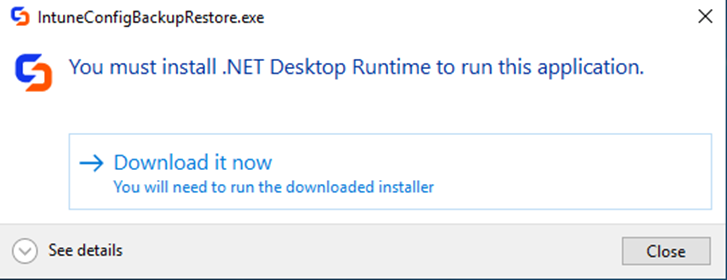
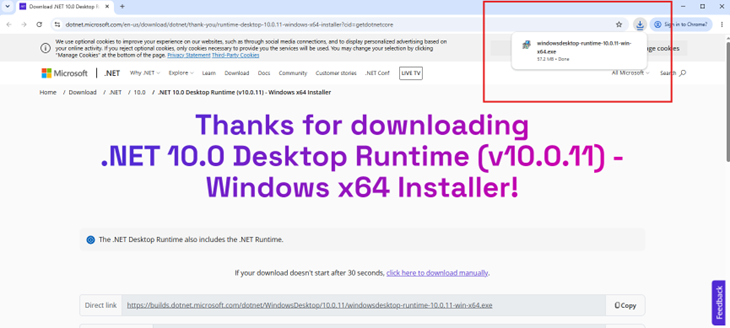
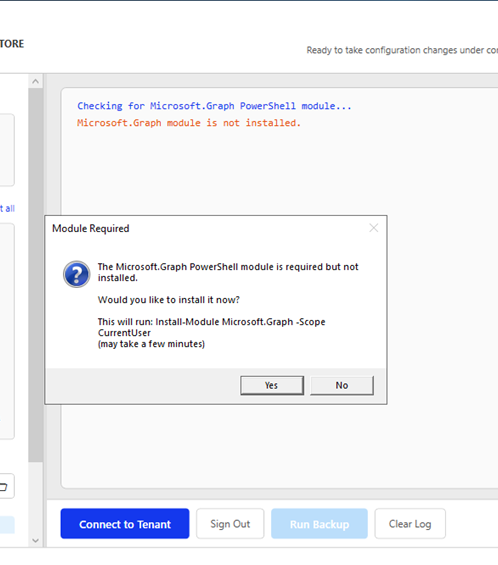
Once you’ve installed all prerequisites, select the “Connect to Tenant” button and sign in to the Entra ID tenant to perform your first backup!
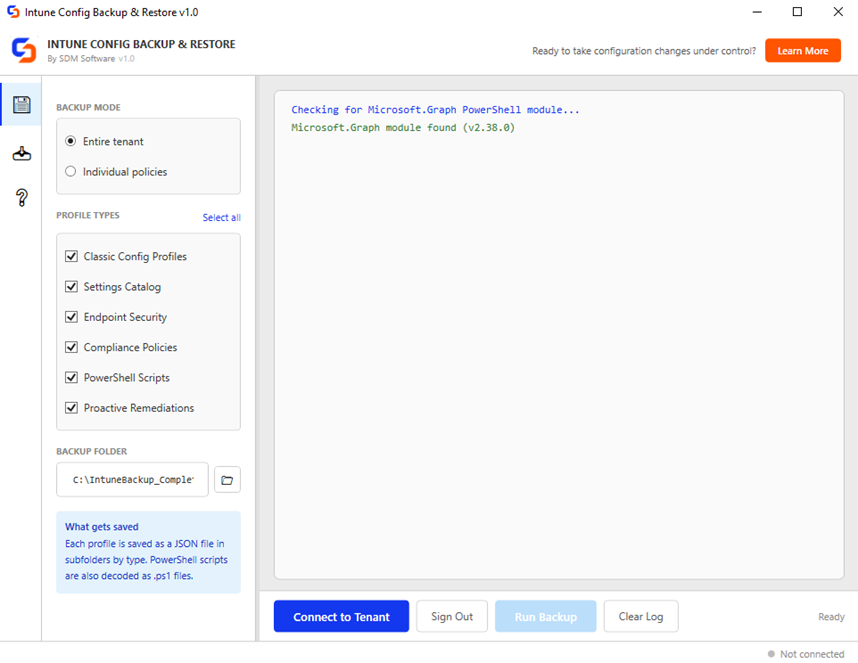
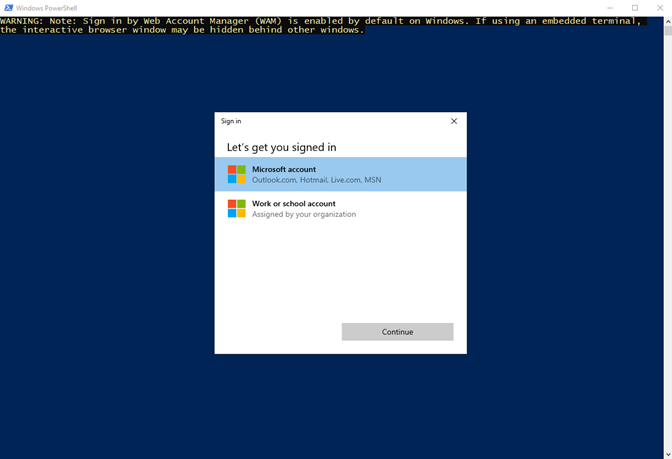
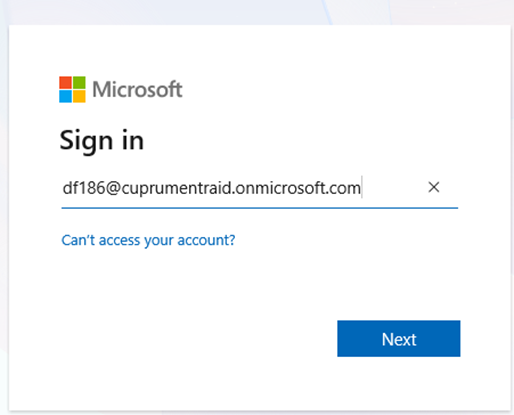
Backup Mode of Intune Config Backup & Restore Free Tool
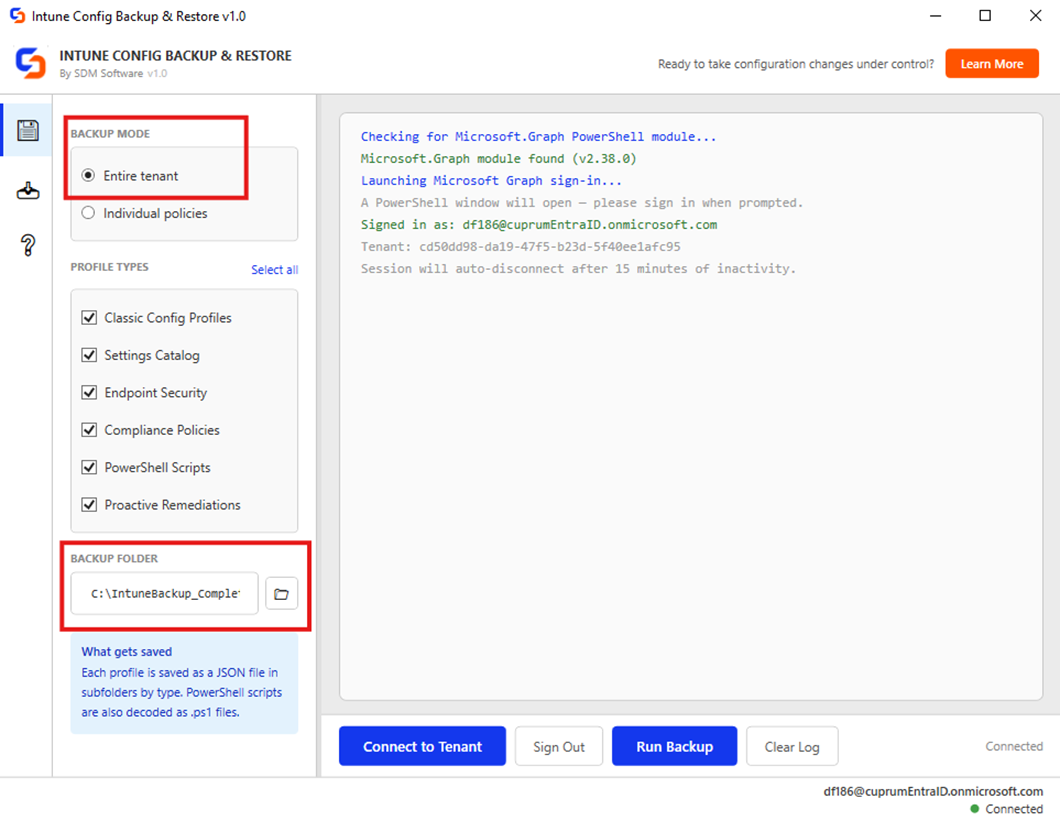
On the Backup page, choose a destination folder and the profile types to capture, then click Run Backup. Each policy is saved as a JSON file under a type-specific subfolder (e.g. SettingsCatalog\, Compliance_Policies\).
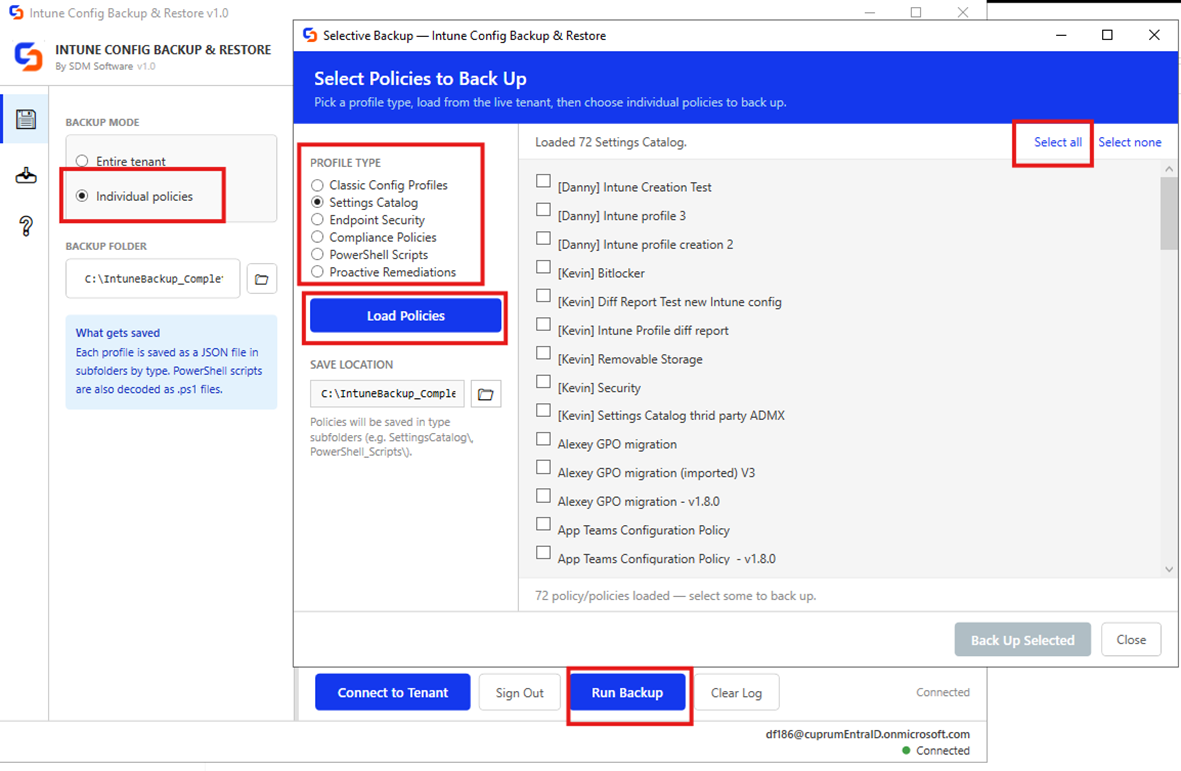
For granular control, ‘Select Individual…’ opens a window where you pick a specific type, load the live policy list, and check exactly which policies to back up — the files are saved in the same subfolder structure and are fully interchangeable with full backups.
Note: Backups capture full settings at high fidelity. Always back up before importing or overwriting, so you can restore if something goes wrong.
Import Mode of Intune Config Backup & Restore Free Tool
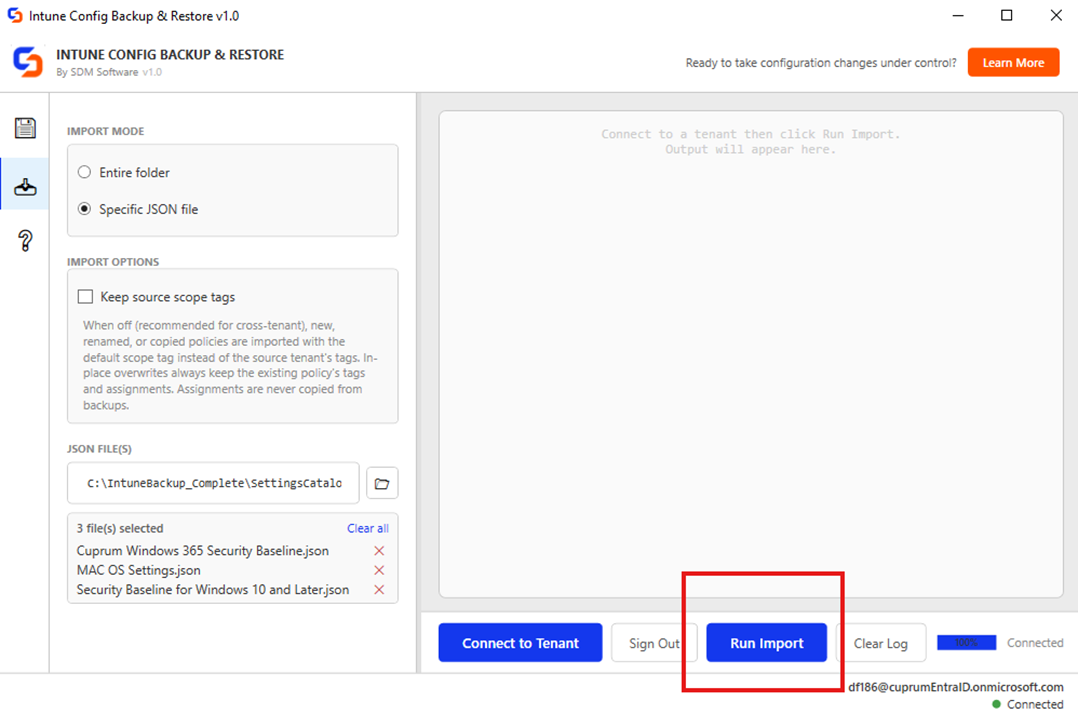
On the Import page, pick your backup folder and either import an entire folder or specific JSON files. When importing specific files, you can add several at once (Browse supports multi-select, and you can add or remove files from the list). Each file’s profile type is detected automatically — the type checkboxes are disabled, and the detected type(s) are shown.
“Entire Folder” is automatically selected. You can change the import location below for a custom location. Under the section “Profile Types” select which type of profile folder you would like to import as part of the entire folder.
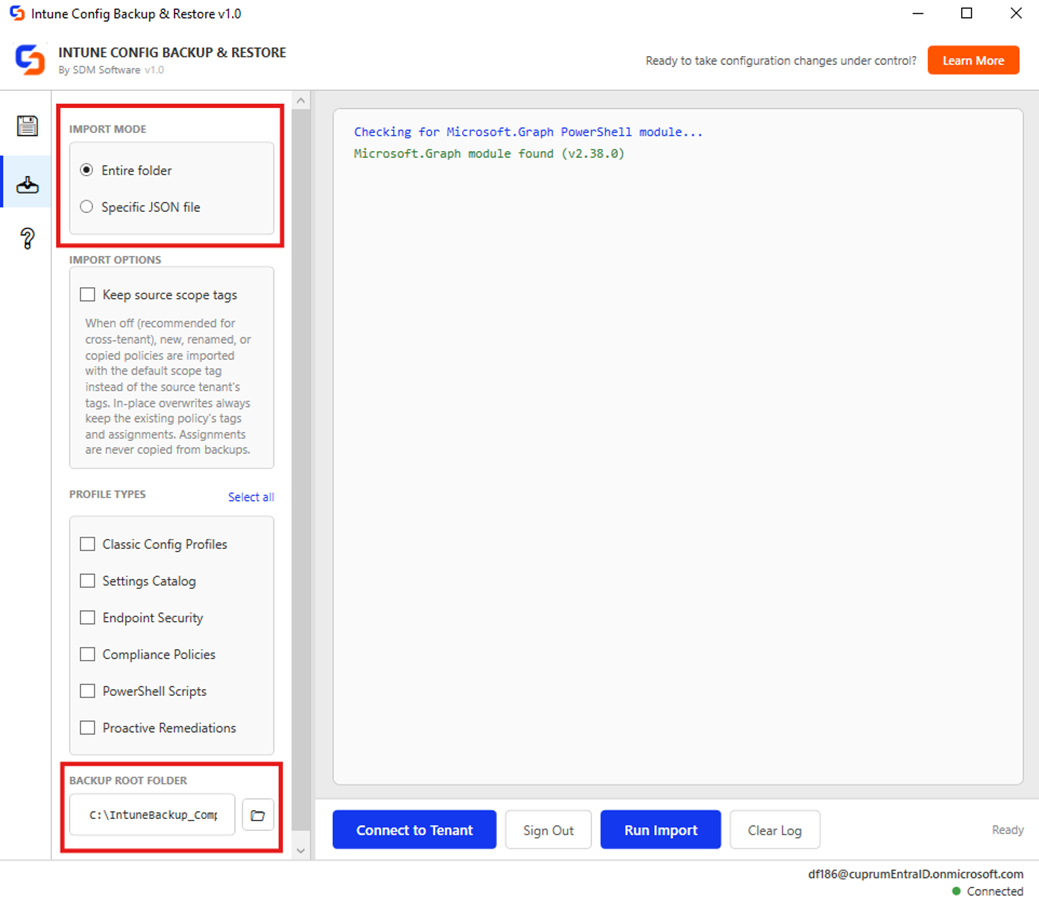
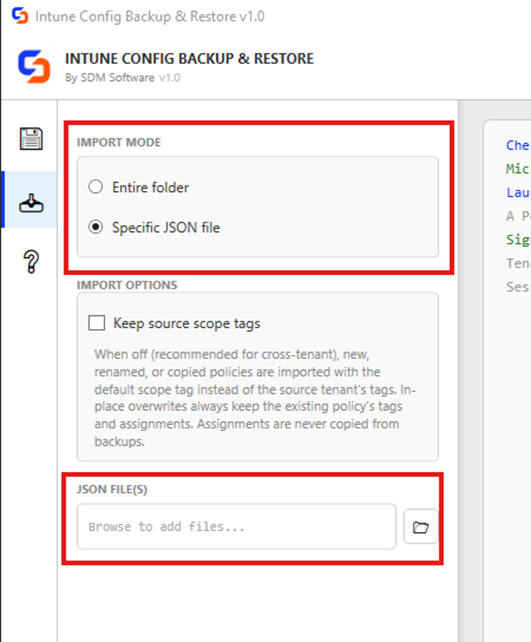
Note: Import Options allow you to decide how to handle the source scope tags. If importing cross-tenant, it is recommended to deselect scope tags.
When selecting “Specific JSON file”, choose the folder icon below to select the location where your JSON files are stored.
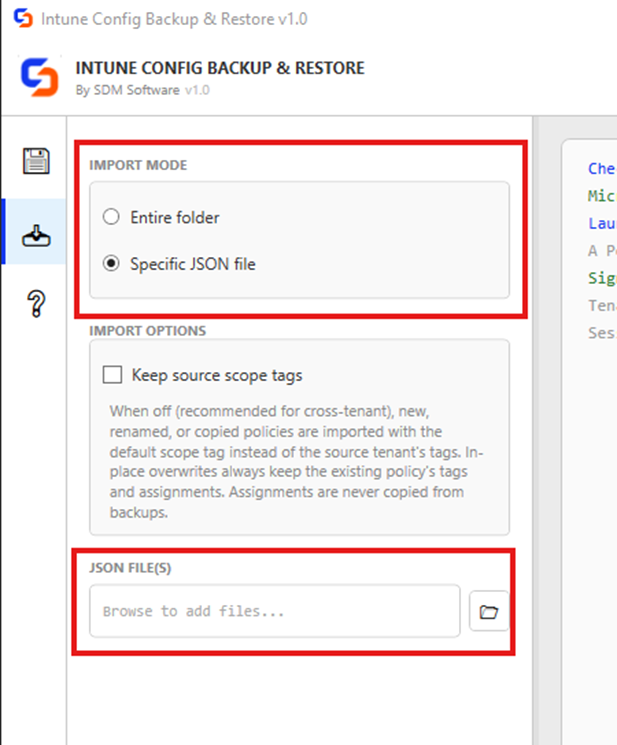
Note: Intune Profiles that have been manually exported from intune.microsoft.com are also supported by SDM’s Intune Config Backup & Restore.
Multi-Select allows you to add individual json files to an import list:
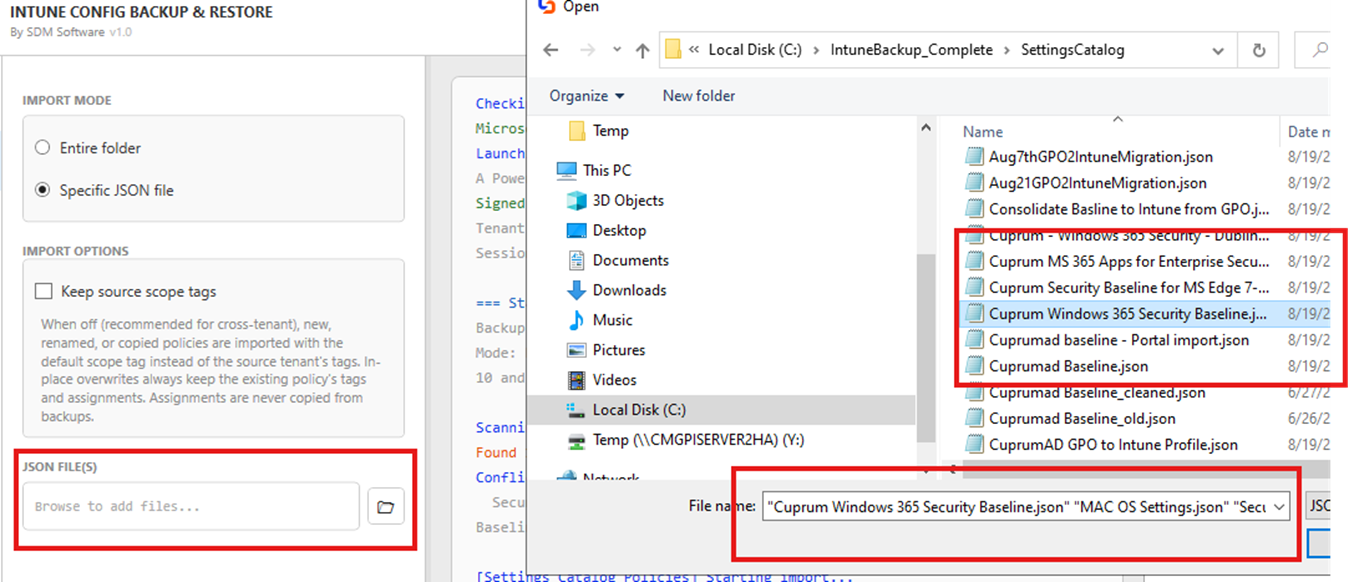
Regardless of the Import type (Entire folder or Specific JSON), once you have made your choice, select the “Run Import” button:
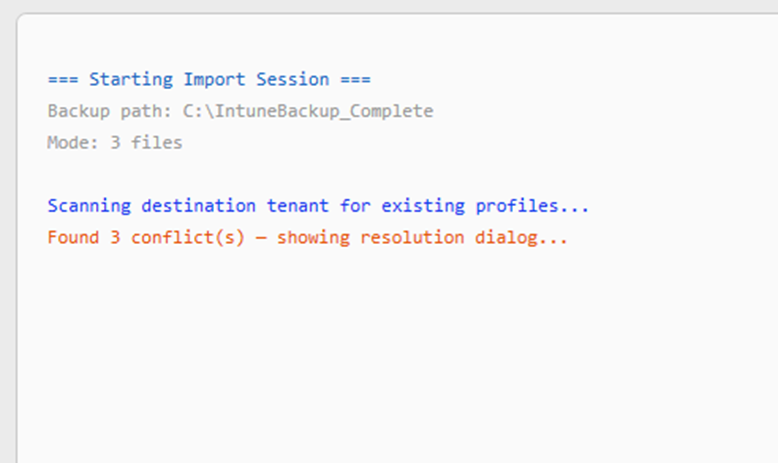
The Status window will display the result of the scan:
Conflict Resolution in Intune Config Backup & Restore Free Tool
Before importing, Intune Config Backup & Restore scans the destination tenant for policies that already exist. Matching is layered for accuracy:
- GUID match first — if the backup’s original policy ID exists in the tenant, it pairs them. This survives renames on either side and is ideal for same-tenant restore.
- Name match fallback — if no GUID match (typical for cross-tenant), it matches by policy name.
- Ambiguity is flagged — if a name matches multiple live policies, the conflict card warns you to verify before overwriting.
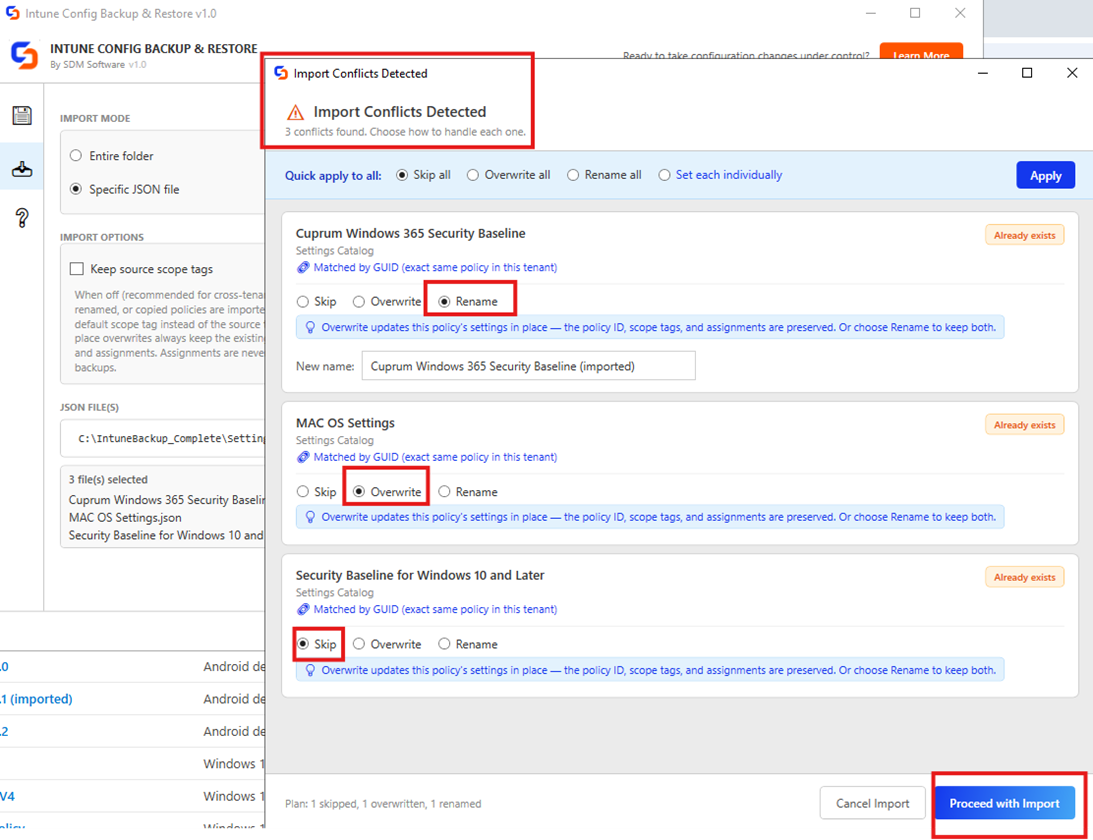
For each conflict, options include: Skip (leave the existing policy), Overwrite (update in place), or Rename (import as a new copy).
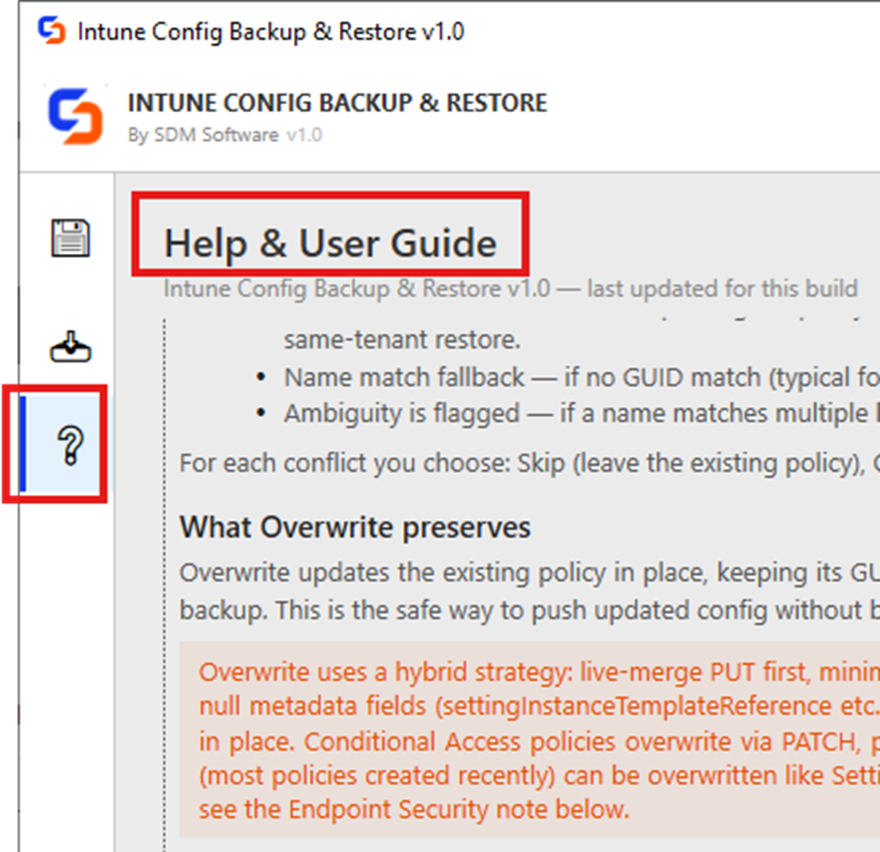
More details can be found in the “Help & User Guide” section of the utility:
Request a Demo
"*" indicates required fields